
F5 Unified Demo Framework (UDF)
Note
This environment is currently available for F5 employees only
Connecting to the Environment
To connect to the lab environment we will use an RDP client to connect to the Windows Jump Box.
Note
- We recommend that students open this lab guide on their Jumphost
- using the Chrome web browser. The browser is configured to open the lab guide as it’s start page.
The lab environment provides two access methods to the Jumphost:
- RDP Connection using an RDP Client
Connect using RDP
In the UDF navigate to your Deployments
Click the Details button for your Deployment
Click the Components tab
Find the
Linux JumphostComponent and click the the Details button.Download the RDP file by completed one of the following:
Full Screen: Click the
 button to download an RDP
file that will start the RDP session in full screen mode
button to download an RDP
file that will start the RDP session in full screen modeSpecify Resolution: Click the
 button and select a
screen resolution to use for the connection:
button and select a
screen resolution to use for the connection: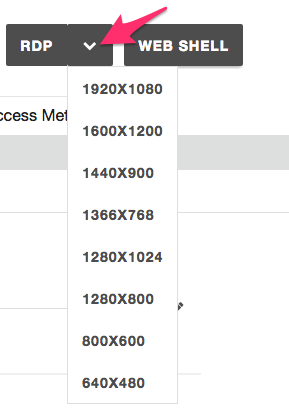
If you do not have the official Microsoft Remote Desktop Client, please install it using the instructions at https://docs.microsoft.com/en-us/windows-server/remote/remote-desktop-services/clients/remote-desktop-clients
Warning
If you have a HiDPI display please refer to the lab-udf-hidpi instructions below
Open the RDP file in the Remote Desktop Client and connect. If you have any problems please ask your instructor for help
Select how you would like to continue:
- Start: module0
Using HiDPI Displays (RDP & Windows)
Warning
Do these steps BEFORE you connect via RDP. Choose ONE only. Do not do both.
If you are using Hi Resolution Display on Windows, we recommend that you either:
- RECOMMENDED: Resize your display to 1080p (1920 x 1080) or
- Use your RDP clients “Zoom” functionality to increase the size
Resize your display (Windows 10) - RECOMMENDED
Right click on your Desktop and select Display Settings.
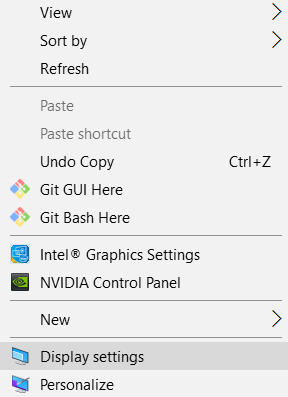
Click on Advanced Display Settings
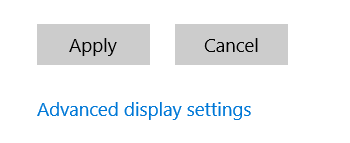
Change the Resolution to
1920 x 1080and click the Apply button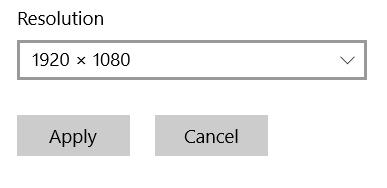
Connect to the RDP session
Select how you would like to continue:
- Start: module0
Use RDP Zoom
Right click on the RDP file and click on Edit
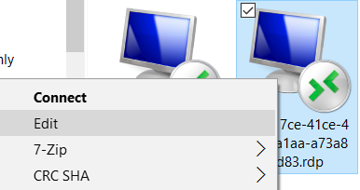
Under the Display tab change the resolution to
1920x1080, then click Connect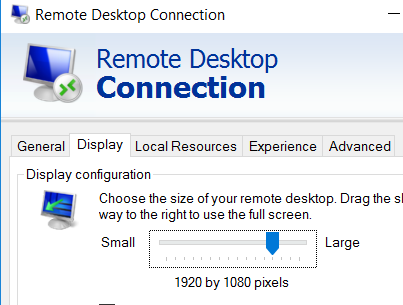
After you connect, access the menu at the top left of your RDP Window and change the Zoom level (i.e. 175%).
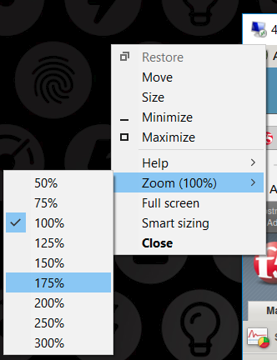
Select how you would like to continue:
- Start: module0